
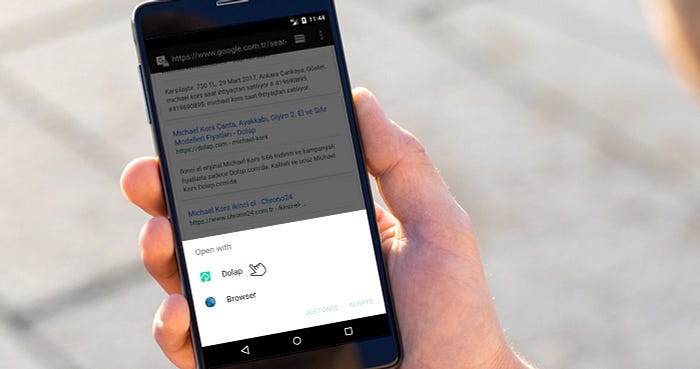
Ever since Android 12 introduced stricter web link verification policies, standard deep links have silently failed across production apps. Instead of launching your native Activity directly, the operating system drops users straight into Chrome or prompts them with a disruptive disambiguation dialog.
If your links route to the web, your domain verification pipeline is broken. Fixing it requires mapping specific URL schemas and validating domain ownership through cryptographically aligned asset declarations. This guide builds on our foundation in Verify Deep Links on Android 12+.
Before touching the build configuration, confirm these architectural requirements are in place:
- Intent filters explicitly declared in
AndroidManifest.xml. - Incoming intent parse logic initialized in
MainActivity. - Digital Asset Links (DAL) connecting the app identity and host domain.
Architectural Mapping via App Links Assistant
Android Studio includes the App Links Assistant (available since Android Studio 2.3), an integrated workbench that generates manifest filters and automates verification steps.
To begin the configuration workflow:
- Open the main menu and select Tools → App Links Assistant.
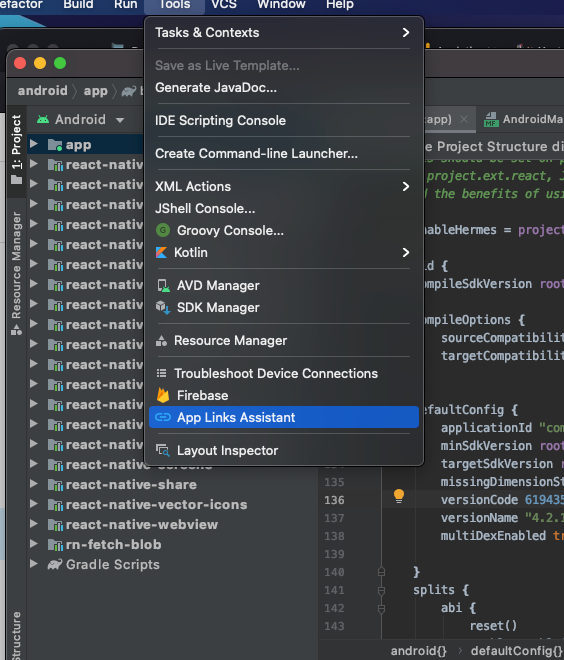
- Select Open URL Mapping Editor, then click the + (Add) button inside the URL Mapping pane to register an endpoint.
Figure 1. Mapping site URL architecture to an explicit Activity target.
To configure the routing rules correctly:
- Host: Declare the target web domain.
- Path Definition: Set a
path,pathPrefix, orpathPatternmatching your link taxonomy. For example, if a recipe application routes all web traffic under the/recipedirectory into a single Activity, selectpathPrefixand assign/recipe. Any incoming URI such ashttp://www.recipe-app.com/recipe/grilled-potato-saladroutes immediately to that selected Activity. - Activity: Select the target destination class.
- Confirm by clicking OK.
Establishing Cryptographic Domain Association
Routing rules inside your manifest mean nothing to Android 12+ without two-way domain association. You must prove ownership of the host by serving a signed statement file.
- Open the Assistant sidebar and select Open Digital Asset Links File Generator.
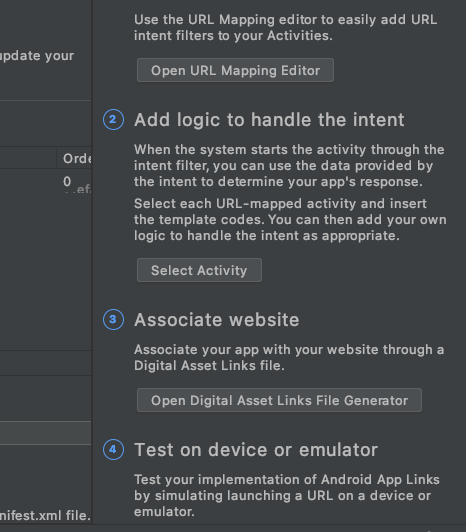
- Navigate to Step 3 (Generate Digital Asset Links file).
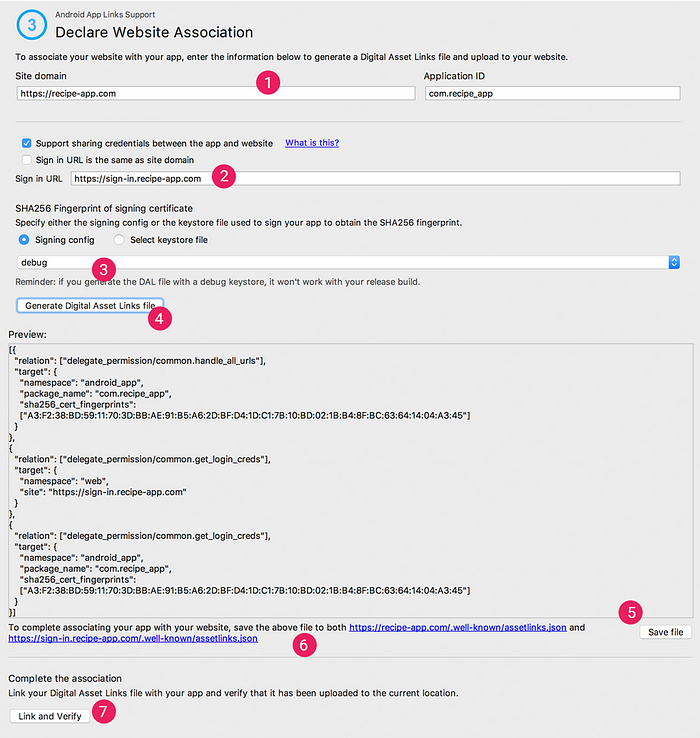
Configure the generation parameters:
- Site domain and Application ID: Enter your production host and verify the package namespace.
- Smart Lock for Passwords support: Check Support sharing credentials between the app and the website and specify your web login URL. This injects the
delegate_permission/common.get_login_credsrelationship into the file to share auth credentials across platforms. - Signing config: Choose the exact signing configuration or keystore file.
| Build Variant | Keystore Selection | Purpose |
|---|---|---|
| Testing / Emulation | Debug Config | Local intent routing and verification checks |
| Production Release | Release Keystore | Strict Play Store and OS-level domain verification |
- Click Generate Digital Asset Links file.
- Click Save file to output your generated
assetlinks.json. - Deploy
assetlinks.jsondirectly to your web server under the following path:
https://<yoursite>/.well-known/assetlinks.json
Ensure this file has public read access over an HTTPS endpoint. 6. Click Link and Verify within Android Studio to validate the remote deployment.
When shipping to production, switch Step 3 to your Release Keystore, select the keystore file, and execute Link and Verify once more.
End-to-End Link Verification
Do not push an update without validating how the system handles the intent.
- Select Test App Links within the Assistant interface.
- Provide a fully qualified target URI in the URL input field (such as
http://recipe-app.com/recipe/grilled-potato-salad). - Click Run Test.
Diagnostic Outcomes
- Misconfigured or Missing Mapping: The Assistant outputs an error trace in the Test App Links console showing unmatched URI segments.
- Verification Success: Android Studio triggers execution on the active test device or emulator, launching the destination Activity immediately with no system disambiguation dialog or chooser prompt. A confirmation registers in the App Link Testing console.
- Launch Failure: If the app fails to start, inspect the Run tool window to catch runtime intent parse crashes and stack traces.
Reference: